

***RCS is only available on the France platform.***
To send an RCS, you must create the content, test it and program the sending. The RCS editor allows you to generate richer content than SMS, such as carousels, cards and buttons.
Access path: Communications → Campaigns Required plan: Available in all plans as an option |
Requirements
- Activate the SMS channel and the RCS channel . The SMS channel is required since it is used as a fallback when a recipient cannot receive RCS.
- Import phone numbers from your contacts into your project.
- Create at least one consent for the RCS communications.
- Import consent statuses (subscribed, unsubscribed).
Step 1: Choose the Starting Content
1.1 Go to Communications → Campaigns and click Create a campaign.
1.2 Assign a name to your campaign.
1.3 Select a communication type.
1.4 Select the sending date (you can change it later).
1.5 Select RCS for the channel.
| Warning! If you have a CDP structure, make sure to create the RCS in the right project. Generally, it's in the unified project that you will create the RCS, since it's the project that contains unified contact profiles and the data you need for targeting. In some cases, you could create an RCS in a source project. For example, for a transaction confirmation, you could create the RCS in the source project that contains transaction data. |
Step 2: Add the Content of the RCS
Message type
In the RCS editor, select the message type you want to use: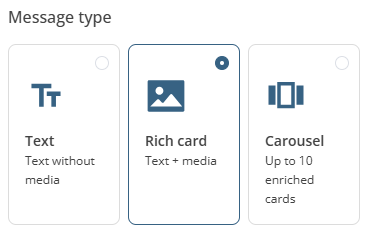
Personalization
You can add personalization in the message by clicking this icon: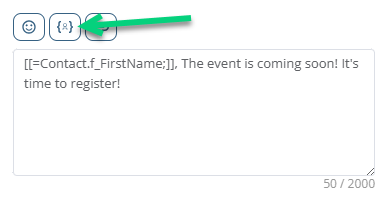
In this example, we inserted personalization with the First Name field.
Buttons
You can add a call to action in the form of a button: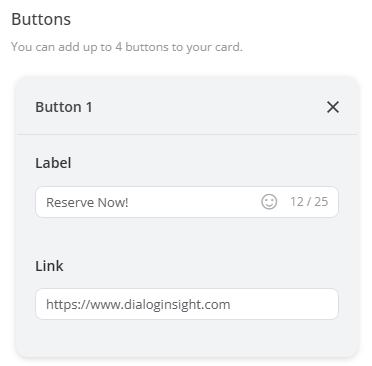
Step 3: Add Unsuscribe Instructions
At the bottom of the message, add unsubscribe instructions by indicating which word to use to opt-out (e.g., "STOP"), depending on the unsubscribe mechanism which was put in place for the SMS channel.
Step 4: Add Content for the Fallback SMS
For your recipients who do not have a device or a network that supports RCS, you must create alternative content, which will be delivered as an SMS.
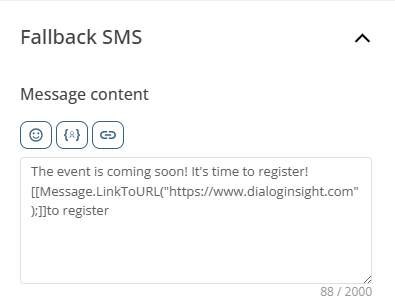 To add a link, click the Add a link button. The code to integrate the link will be generated automatically, like in this example.
Step 5: Test the RCS
5.1 Click Preview and test in the upper part of the page.
5.2 You can preview the RCS content using the view of admissible contacts from the drop-down list.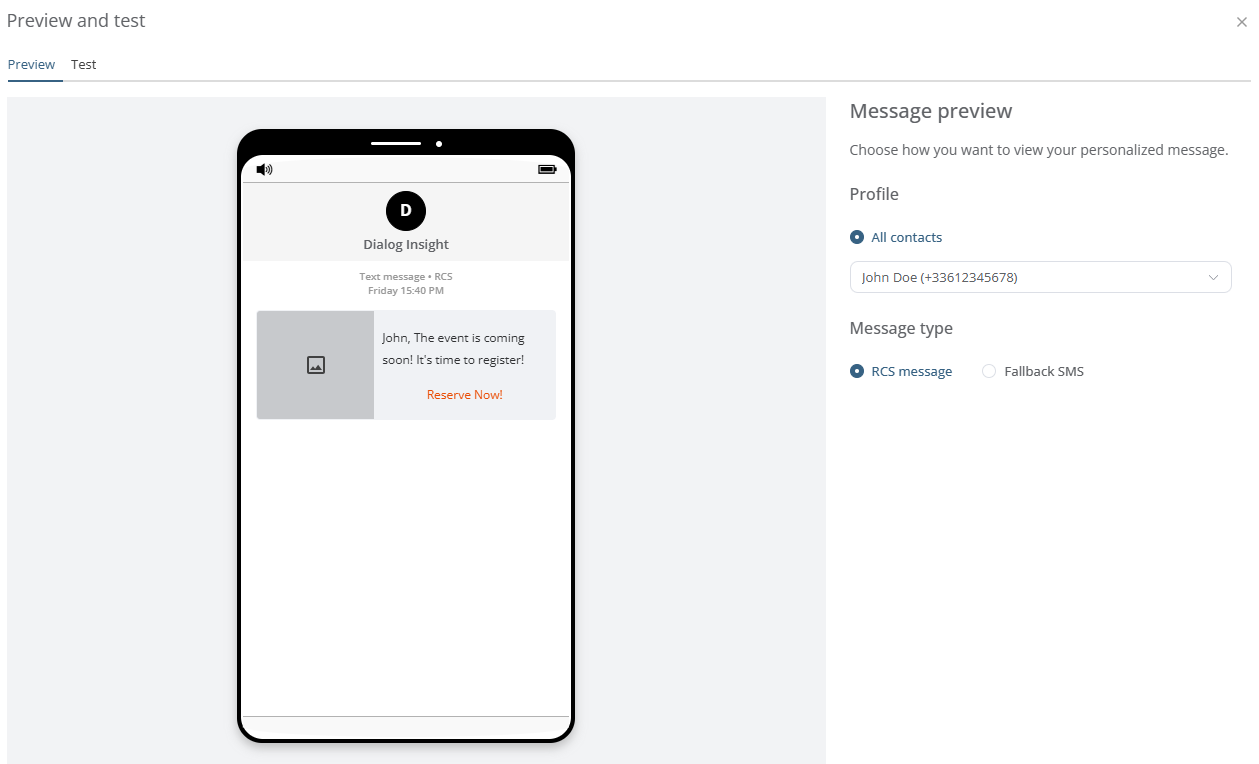
5.3 Vérify the preview with the Fallback SMS.
5.4 In the Test section, you can select recipients from your seed list contacts. The contact you select for the Profile preview will determine the view of the message the seed list contacts will receive.
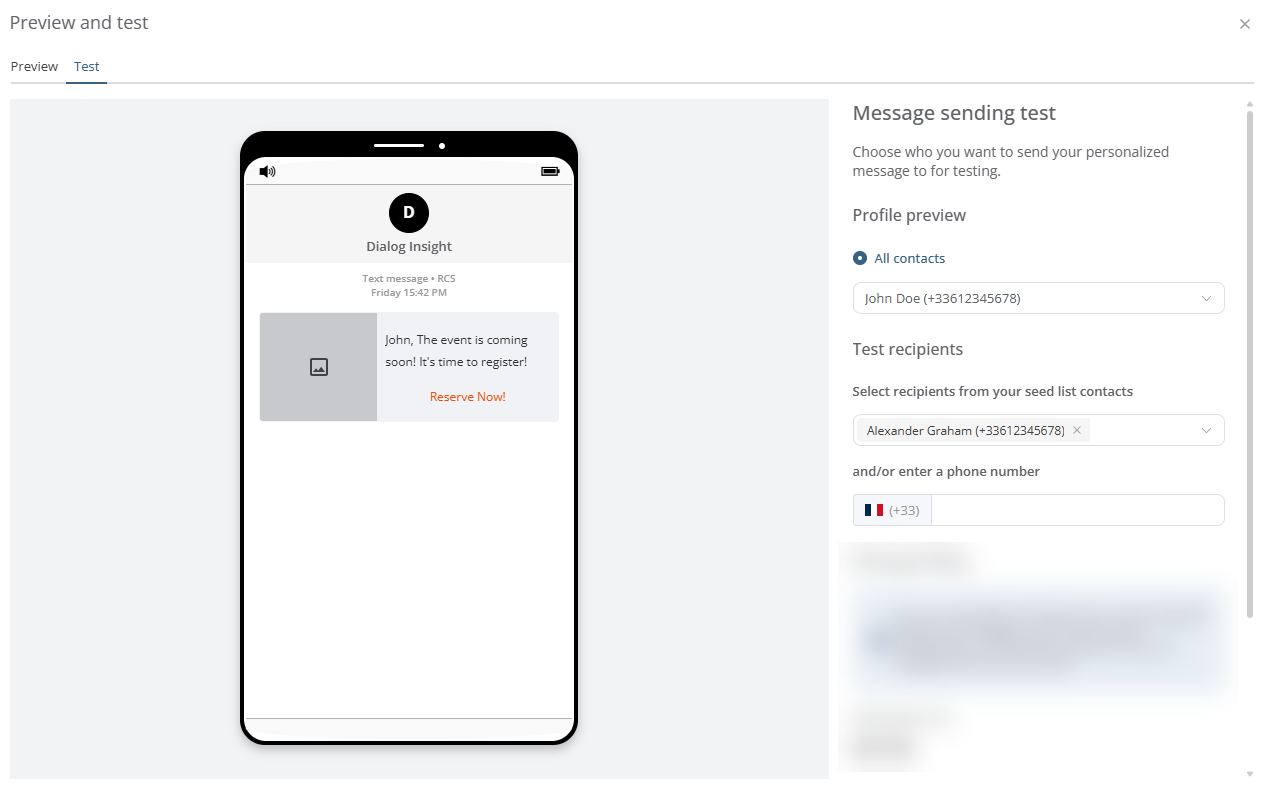
In this example, Alexander Graham will receive the message with the same personalization as John Doe would.
Warning! Do not answer STOP to this message to test the unsubscribe. It will unsubscribe the selected contact for real (in this example, it would unsubscribe John even if it is Alexander who received the message.
How to add a contact to the seed list?
You must use the Add to seed list option in the contact's profile (make sure you have permission from this contact):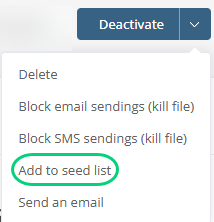
Step 6: Prepare the Campaign
6.1 In the Recipients section, select a group to target.
→ Learn more about the conditions for a contact to be targeted when sending a message
6.2 In the Scheduling section, you can choose to send the message Immediately (as soon as the mailing is approved), according to the Send time optimization (Optimized) or Later, depending on the date and time indicated (choose the time zone):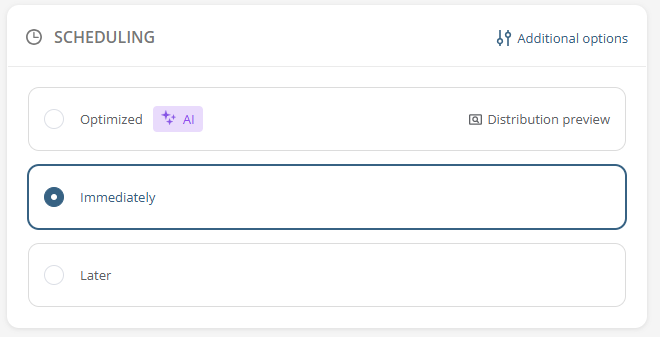
6.3 When the campaign is ready, click Prepare campaign in the upper part of the page.
Results
To see the results of an RCS campaign, go to the campaign list using this path: Communications → Campaigns. Find the campaign, and, at the end of the line, click the Statistics icon: You will then see the deliveries, views, clicks and attrition, as well as the fallback SMS results.