

In the campaign calendar , as the name suggests, you can schedule campaigns by selecting the date in the calendar. If you're unsure of the final content, you can simply create a draft in the meantime. Creating drafts is a good way to create an overview of your upcoming communications and integrate them into your overall strategy. In this article, we'll cover how to create a campaign (for emails or SMS).
Step 1: Select the Date
Go to Communications → Campaigns and, in the calendar, select the date for which you want to plan a campaign:
Then, give a name to the message and select the communication type: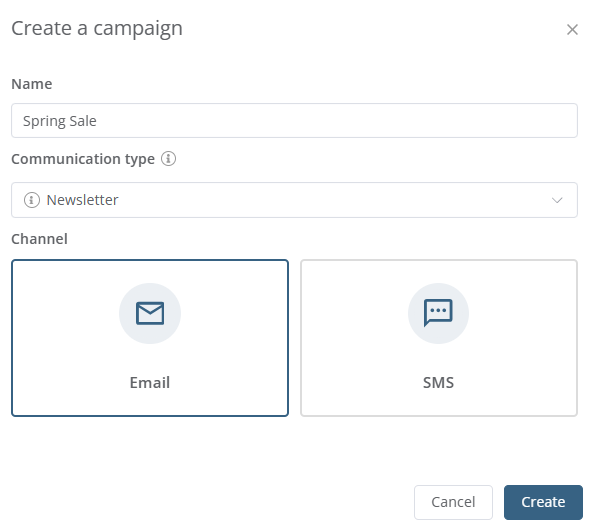
Step 2: Select the Recipients
Go to the message generated and, in the Recipients section, select the groups to whom you want to send the message.
Step 3: Schedule the Campaign
In the Scheduling section, select an option for the time of the campaign.
→ Learn More on Sending Emails
→ Learn More on Sending SMS
Step 4: Create the Content of the Message
When you have inspiration, add content to the message.
→ Adding Content to an Email
→ Adding Content to an SMS
Step 5: Prepare the Campaign
When you have validated your content, you can confirm the selected date. All you have to do is click Prepare campaign in the upper right of the Send interface. If you don't click that button, the message will not be sent on the programmed date.
Results
When the campaign is planned, its status will change to Running in the calendar. Verify its status to make sure the campaign is programmed.
→ Consult the Campaign Calendar