

An abandoned cart campaign aims to automatically re-engage a customer who has left items in their cart on the online store. It's a one-time email triggered by this event. This scenario relies on the Retail structure of Dialog Insight. Its implementation is recommended for users already familiar with creating automated campaigns, as it requires knowledge of certain Dialog Insight configuration nuances. This article outlines the steps necessary to set up an abandoned cart campaign, including the trigger, the message, and associated conditions.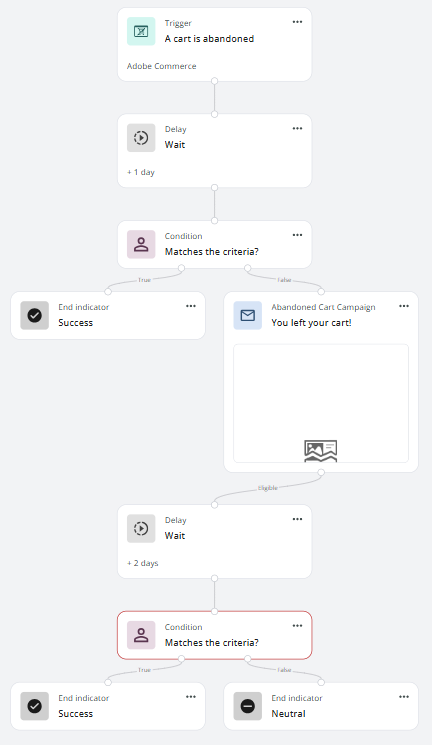
Access path: Automation → Automated Campaigns |
Requirements
You must set up a data source for the abandoned carts.
Option 1
You must set up an E-commerce integration from Dialog Insight (Shopify, Adobe commerce or PrestaShop). The following tables must contain data on the abandoned carts to use: ECommerce_Cart, CartItem and Product. (Learn more on the tables from the Retail structure).
Note: There may be a delay between the time the abandoned cart event is detected and the campaign being triggered, depending on the synchronization time of the integration used.
Option 2
Configure Journey to track abandoned carts on your website.
| If you have a CDP structure, product and cart data must be available in the project you will use to send the abandoned cart campaign. |
Step 1: Generate the Campaign Basis
1.1 Go to Automation → Automated Campaigns.
1.2 Click Create a campaign in the upper right.
1.3 Click Start without a template.
1.4 Select Recurrent for the campaign type.
| Resources |
Step 2: Add the Trigger
2.1 Drag an abandoned cart node in the center:

2.2 Select the source depending on the integration used (see the requirements at the beginning of the article):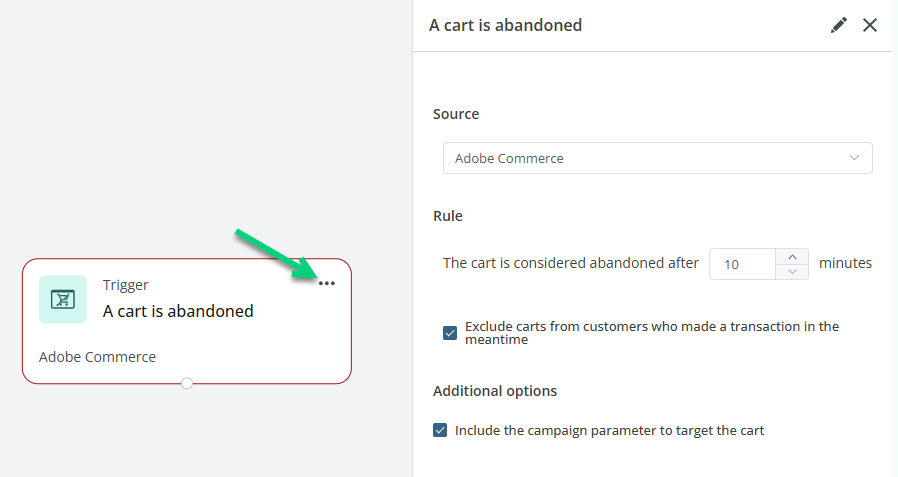
You can modify the rule for The cart is considered abandoned after if you want to delay the trigger.
Step 3: Add a Targeting
Depending on your approach, you could add a delay after the triggering: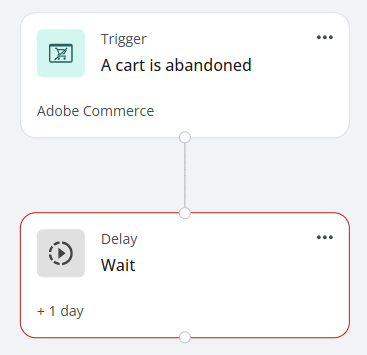
If it is the case, it is relevant to recalculate if the contacts initially targeted have made a purchase meanwhile. This will determine if the reminder email is necessary. To verify if the contact has made a purchase, you can use a condition which uses a clause on the Transaction table: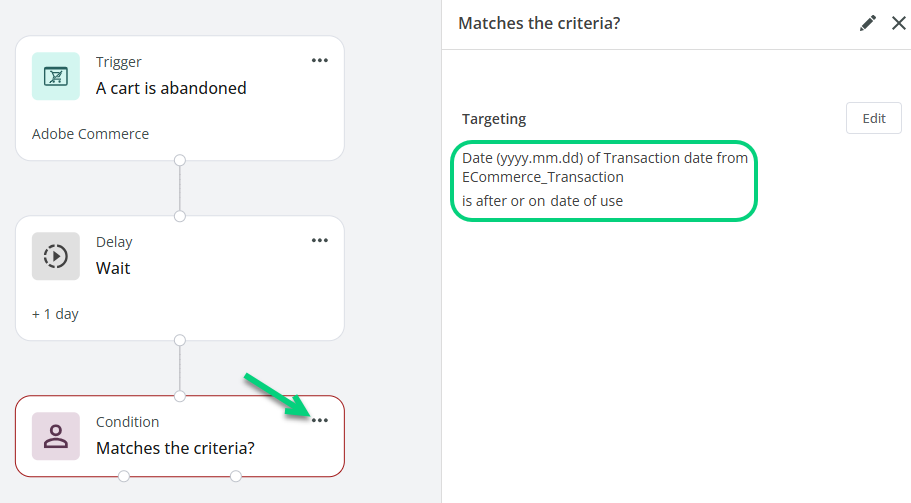
If you want to target contact of a group, you could use a Belongs to the group? node instead. You can add the transaction clause inside this node: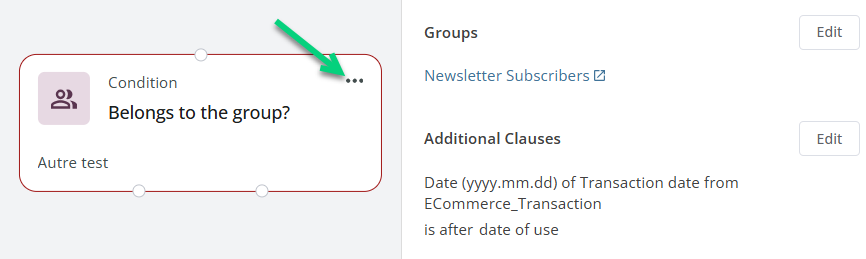
Step 4: Create a Reminder Email
4.1 Drag an email action and, in the edition, click Select to create a new email or to use one that already exists. This email will be used to display items from the contact's abandoned cart and encourage that contact to checkout.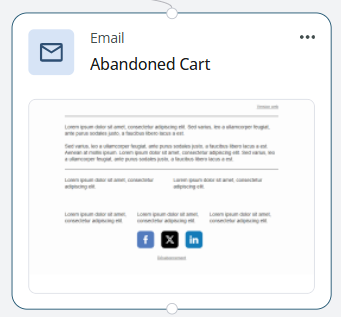
4.2 In the email edition, drag an Abandoned Cart block: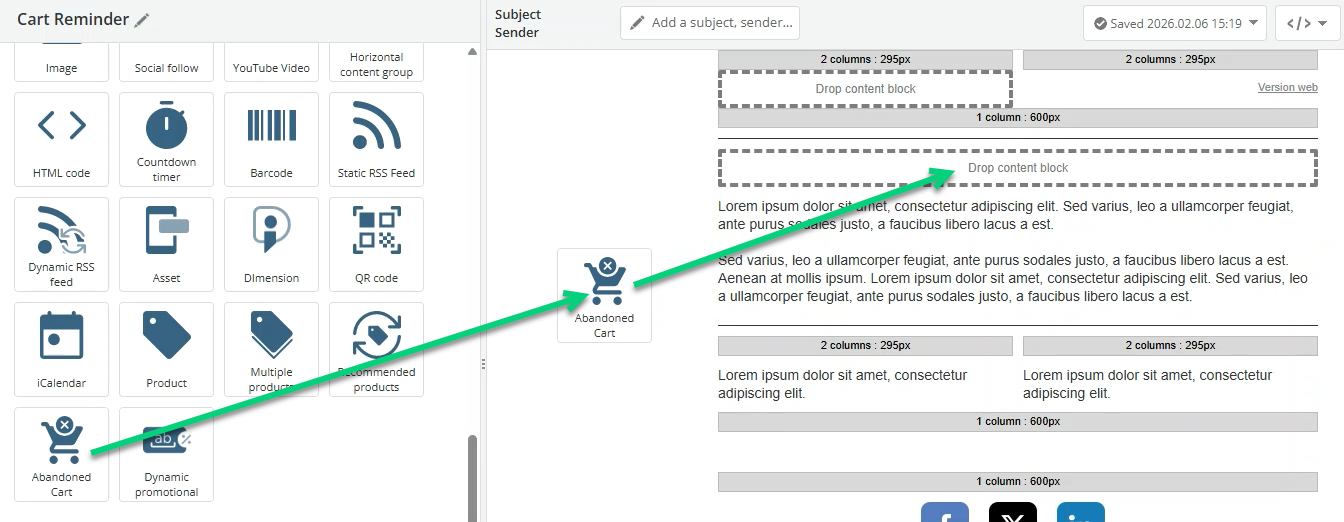
4.3 In the Abandoned Cart block edition, indicate the number of products you want to include in the block and how you want them displayed. Uncheck the elements for which you do not have data in Dialog Insight (for example, if you do not have images for the products, do not check Image). 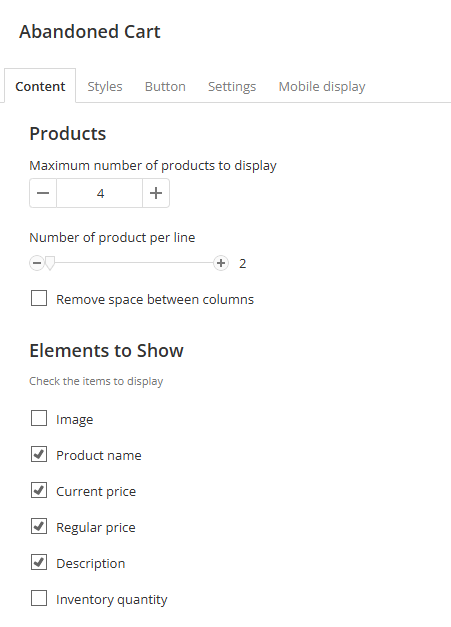
The elements which are displayed in the edition interface are only placeholder. You will not see your products: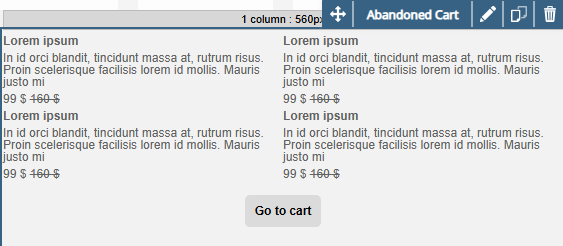
4.4 You can change the text and styles for the button (call to action):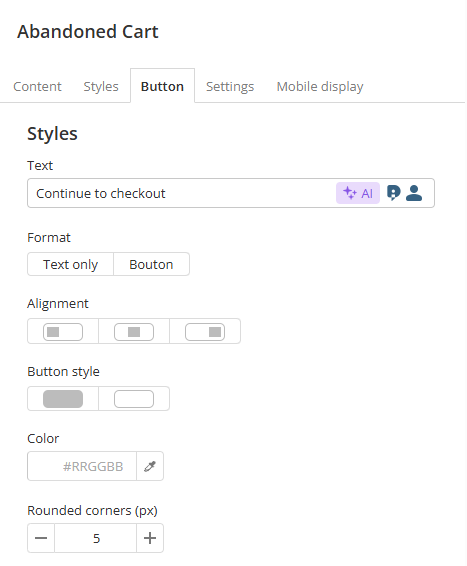 4.5 Finalize the content of the other email sections.
Step 5: Add a Validation
You could add a delay after sending the email to give the contact time to see the email. After this delay, you could add a condition to verify if the contact has made a purchase (like in Step 3) or has clicked in the email depending on what you want to measure. 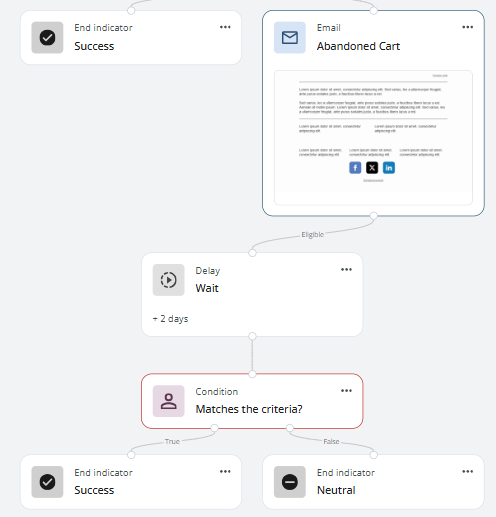
If the condition is true, the goal of the campaign is considered as a success.
Step 6: Test the Campaign
When all the campaign elements are ready, you can test the campaign by clinking Test in the upper right. In order to test the campaign, you need a test contact included in a test group. This contact must have cart data (ECommerce_Cart et ECommerce_CartItem tables) linked to the profile.
Step 7: Activate the Campaign
When the campaign is relady to launch, click Activate in the upper right. Your campaign will target all contacts with an abandoned cart and who corresponds to the targeting you establish. All you have left to do is to monitor the impact of the campaign by reviewing the campaign results. You could also consult the transaction and revenue results.