

Results for your contacts list are available in different sections of your project. On the home page, there is an overview of your contacts' performance, and in the Results section, there are detailed statistics (opt-ins, new contacts, retention rate, active/inactive contacts, etc.). For statistics on a specific contact, consult that contact's profile.
| If you have a CDP structure, the data and contacts results will be different if you are in a source project or the unified project. In a source project, the results are only for the contacts that belong to that project, along with the data associated with those contacts. In the unified project, the results reflects unified profiles based on the data synchronized from source projects, according to the defined connection and prioritization rules. |
Overview
On the home page, you will find a summary of the performance, like the following: These statistics are updated once a day. There could be a disparity between the data displayed here and the data in real-time.
Detailed Results
Go to Analytics -> Contacts and Journey. The default page is the summary of all reports. By scrolling down, you will see all the charts available for your project. You can also select a report with the menu at the top of the page:
| Summary | The Summary page is the one displayed by default when you open contact results, and shows a summary of the most common charts. Most charts on this page can also be viewed in a detailed format by clicking on the  icon. icon.Two other action icons can be used with charts:
| ||||||||||||||||
| Contact subscriber status |  This chart shows how many contacts have subscribed to communications, as opposed to those who haven't. This chart is only shown for projects whose subscription management is done through project fields. | ||||||||||||||||
| Opt-in and implied consents | 
| ||||||||||||||||
| Acquisitions |  This chart shows data that can differ depending on how opt-ins are managed, and this for each day/week/month/year for the selected period. This chart shows data that can differ depending on how opt-ins are managed, and this for each day/week/month/year for the selected period. | ||||||||||||||||
| Opt-in sources |  This chart shows the different ways contacts have subscribed and the number of contacts for each opt-in source, for the selected period. This chart shows the different ways contacts have subscribed and the number of contacts for each opt-in source, for the selected period. | ||||||||||||||||
| Contact list evolution |  This chart shows the increase or decrease of contacts in the project, whatever their subscription or contact status are, for the selected period. This chart shows the increase or decrease of contacts in the project, whatever their subscription or contact status are, for the selected period. | ||||||||||||||||
| Opt-out sources |  This chart shows the different ways opt-outs are performed, and displays the number of contacts for each opt-out source when clicking on the chart bars, all this for the selected period. This chart shows the different ways opt-outs are performed, and displays the number of contacts for each opt-out source when clicking on the chart bars, all this for the selected period.
| ||||||||||||||||
| Retention |  This chart shows the evolution of new contacts, as well as how many are still subscribers in time, based on the selected period. This chart shows the evolution of new contacts, as well as how many are still subscribers in time, based on the selected period. | ||||||||||||||||
| Engagement |  This chart shows what your contacts do with your messages, that is, whether they open them, click in them, or if they do nothing at all, for the selected period. The numbers are unique depending on the period chosen: Example for Opened per month: A contact that has opened at least one email each month will be counted 12 times. Example for Opened per year: A contact that opened at least one email during the year will be counted once. | ||||||||||||||||
| Used devices |  This chart shows which devices your contacts use to open your messages, for the selected period. This chart shows which devices your contacts use to open your messages, for the selected period. | ||||||||||||||||
| Scoring |  This chart shows the number of contacts associated to each of the scores you have defined, for the selected period. This chart shows the number of contacts associated to each of the scores you have defined, for the selected period. | ||||||||||||||||
| Personas |  This chart shows the number of contacts associated with each of your personas. The 10 most populated personas are displayed. Also, if contacts are associated with more than one persona, the various combinations are displayed at the bottom of the list, and the related contacts are deducted for the individual personas. This chart shows the number of contacts associated with each of your personas. The 10 most populated personas are displayed. Also, if contacts are associated with more than one persona, the various combinations are displayed at the bottom of the list, and the related contacts are deducted for the individual personas.The display of this chart is conditional to the creation of personas and the calculation and update of personas. |
 to export the chart's data into an Excel document.
 to display a description of the chart.
Understanding the Results
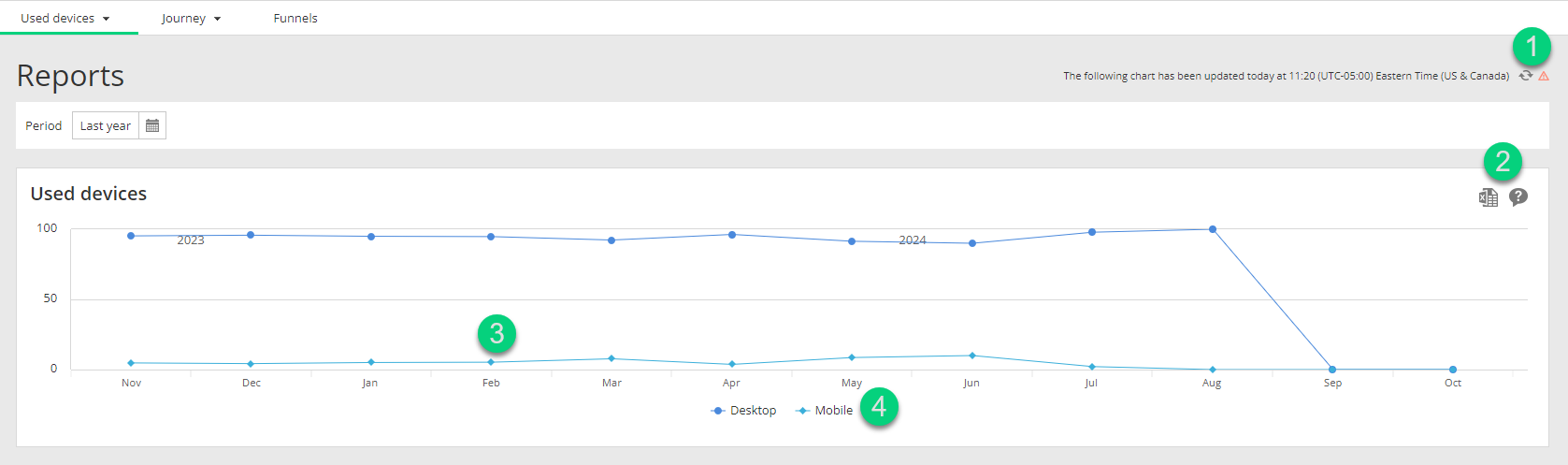
| Section | Description |
|---|---|
| 1 | Date and time of the last update of results. Refresh icon  that triggers the update of results as of the current date and time. Refreshing results may take several minutes, depending on the load and volume of data. that triggers the update of results as of the current date and time. Refreshing results may take several minutes, depending on the load and volume of data.Even if the update is not completed, you can leave the result page to come back to it later on to see the updated results. |
| 2 |
|
| 3 | Chart bars are clickable and display a list of related contacts. |
| 4 | All legend items are clickable in order to either hide or show the related data in the chart. If the legend contains more than 10 items or if values are crossed, the legend is replaced by a list option. |
 export data
 see description of the chart
You can see the number of contacts associated to a specific section of a chart by hovering over this section. You can also click anywhere in a chart, or on an element in a legend or a list to display the list of related contacts.
